Wednesday, December 11, 2013

VS debugger not getting attach to IE

VS debugger not getting attach to IE

Recently I had this weird error where Microsoft Visual Studio 2010 (VS 2010) debugger was not getting attached to Microsoft Internet Explorer (IE). The only change was that IE was upgraded from IE 9 to IE 10. Till before the upgrade everything was working fine. The error is pasted below.
Attaching the Script debugger to process '[XXXX] iexplore.exe' on machine 'XX-XX-XXX' failed. A debugger is already attached.
The solution for the above problem is pretty simple as well. Open the command prompt (cmd) in “Run as Admin” mode. Run the following command.
regsvr32.exe "%ProgramFiles(x86)%\Common Files\Microsoft Shared\VS7Debug\msdbg2.dll”
“regsvr32” is a command line utility provided my Microsoft to register and unregister dlls in the Windows Registry.

Tuesday, September 3, 2013

Export Data Into Excel in a Pre-defined Template Using StreamWriter

 Exporting data into Excel is a common requirement. In this article, I will explain the exportation of data into Excel in a pre-defined Excel template. 

For exporting data into a pre-defined Excel sheet, we will create an Excel sheet (as in the following) in the folder "ExcelTemplates" with the file name "Reports-ProductDetails.xls":


Create a table called Product:


CREATE TABLE [dbo].[Product](

 [product_id] [int] IDENTITY(1,1) NOT NULL,

 [product_name] [nvarchar](max) NULL,

 [product_rate] [money] NULL

) ON [PRIMARY] TEXTIMAGE_ON [PRIMARY]

GO;


Added some records:

AddedRecord1.png          


Page design code:

 <form id="form1" runat="server">    <div>        <asp:GridView ID="GridView1" runat="server" AllowPaging="True" AutoGenerateColumns="False" CellPadding="4" DataSourceID="SqlDataSource1" ForeColor="#333333" GridLines="None">            <AlternatingRowStyle BackColor="White" />            <Columns>                <asp:BoundField DataField="product_id" HeaderText="Product Id" InsertVisible="False" ReadOnly="True" SortExpression="product_id" />                <asp:BoundField DataField="product_name" HeaderText="Product Name" SortExpression="product_name" />                <asp:BoundField DataField="product_rate" HeaderText="Product Rate" SortExpression="product_rate" />            </Columns>            <EditRowStyle BackColor="#2461BF" />            <FooterStyle BackColor="#507CD1" Font-Bold="True" ForeColor="White" />            <HeaderStyle BackColor="#507CD1" Font-Bold="True" ForeColor="White" />            <PagerStyle BackColor="#2461BF" ForeColor="White" HorizontalAlign="Center" />            <RowStyle BackColor="#EFF3FB" />            <SelectedRowStyle BackColor="#D1DDF1" Font-Bold="True" ForeColor="#333333" />            <SortedAscendingCellStyle BackColor="#F5F7FB" />            <SortedAscendingHeaderStyle BackColor="#6D95E1" />            <SortedDescendingCellStyle BackColor="#E9EBEF" />            <SortedDescendingHeaderStyle BackColor="#4870BE" />        </asp:GridView>    </div>        <asp:SqlDataSource ID="SqlDataSource1" runat="server" ConnectionString="<%$ ConnectionStrings:TestConnectionString %>" SelectCommand="SELECT * FROM [Product]"></asp:SqlDataSource>        <asp:Button ID="Button1" runat="server" OnClick="Button1_Click" Text="Export to Excel" />
</form>

Now here is the code to export the data using a StreamWriter object:


using System; 
using System.Collections.Generic; 
using System.Linq;using System.Web; 
using System.Web.UI; 
using System.Web.UI.WebControls; 
using System.IO; 
using System.Data; 
using System.Data.SqlClient; 
using System.Configuration; 
public partial class ExporttoExcel : System.Web.UI.Page 
{     
SqlConnection con = new SqlConnection(ConfigurationManager.ConnectionStrings["TestConnectionString"].ConnectionString);    protected void Page_Load(object sender, EventArgs e)     
  {         
             GridView1.DataBind();   
  }   
 protected void Button1_Click(object sender, EventArgs e)    
 {       
       SqlCommand command = new SqlCommand();         
       command.CommandText = "SELECT * FROM Product";      
       command.CommandType = CommandType.Text;        
       command.Connection = con; 
       SqlDataAdapter da = new SqlDataAdapter(command); 
       DataSet ds = new DataSet();        da.Fill(ds, "ProductDetails"); 
       if (ds.Tables[0].Rows.Count < 0) 
           return;         
       var fpath = string.Empty; 
        if (Directory.Exists(Server.MapPath("ExcelTemplates")) == false) 
            Directory.CreateDirectory(Server.MapPath("ExcelTemplates")); 
       fpath = Server.MapPath("ExcelTemplates/Reports-ProductDetails" +        Session.SessionID + ".xls"); 
         if (File.Exists(fpath) == false) 
            File.Create(fpath).Close();
         else 
           File.Create(fpath).Close(); 
        if (fpath.Trim() != string.Empty) 
             DataSetToExcel(ds, fpath, "");     
}

  void DataSetToExcel(DataSet dsExport, string path, string tableName)                                      {                                                                                                                                                                                                         if (path == string.Empty) return;                                                                                                         StreamWriter SWriter = new StreamWriter(path);                                                                           string str = string.Empty;                                                                                                                      Int32 colspan = dsExport.Tables[0].Columns.Count;                                                                   str += "<Table border=2><TR><TD align='center'       colspan="+   Convert.ToString(colspan) + ">" + tableName + "</TD></tr>"; 

        str += "<tr><TD align='left' bgcolor='#D1DAA7' style='font-size:18px' colspan="Convert.ToString(colspan) + ">" + tableName + "Product Details</TD></tr>";        str += "<tr></tr><tr><TD align='left' bgcolor='#D1DAA7' style='font-size:10px' colspan=" + Convert.ToString(colspan) + ">" + tableName + " Printed On  " + DateTime.Now.Date + "</TD></tr><tr></TR>"; 

    foreach (DataColumn DBCol in dsExport.Tables[0].Columns)        {            str += "<TD   bgcolor='808080'>" + DBCol.ColumnName + "</TD>";        }        str += "</TR>";        foreach   (DataRow   DBRow in dsExport.Tables[0].Rows)        {            str += "<TR>";            foreach (DataColumn   DBCol in dsExport.Tables[0].Columns)            {                str += "<TD>" + Convert.ToString(DBRow[DBCol.ColumnName]) + "</TD>";            }            str += "</TR>";        }        str += "</TABLE>";        SWriter.WriteLine(str);        SWriter.Flush();        SWriter.Close();        if   (path.Length > 5)            DownloadFile(path);    }                                                                                                                 


After exporting the data into Excel, the report looks like this:


FinalResult.png

Sunday, April 14, 2013

Moving items between ListBoxes using JavaScript

Hi Everyone,

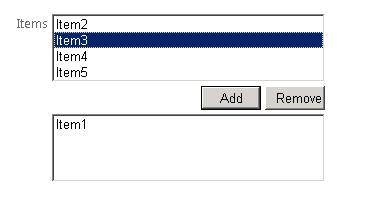
We all would have encountered the situation below where we are asked to select few items from a list of items. The selected items are transferred to another listbox by clicking a simple button. I have put a sample screen shot of that below.

Now lets see how this can be achieved using JavaScript in ASP.NET

Create a new ASP.NET website in VS2010. Visual Studio will automatically add a default.aspx page which has a master page to it. Lets add the Listbox controls to the page. I’ll put the Listboxes and buttons in a table tag so that the output is better..
The code is as shown:


Coming to the code,
You can see that I have added a label, two ListBoxes and two buttons, one to add items, other to remove the items. The first listbox is populated with static data (You can also load data into it dynamically from Database). The second ListBox is initially empty.
Before I explain the attributes of the "Button" control, I would like to explain the JavaScript function that I have written in order to perform the transfer of items. Again a screen shot of the JavaScript function.

The function takes two parameters:
  1. the source listbox ID
  2. the target listbox ID
I have put comments in the code so that it is understood easily. Basically what is happening in the function is the selected items in the source listbox are taken. New "Option" is created for the target listbox and the items are added into the target listbox. Also, the selected items are removed from the source listbox.

Now coming back to the ASP.NET code, you can see that I have added an "OnClientClick" attribute to the button controls. This is because I have to call a javascript function on the Click event of the button. So for the "OnClientClick" attribute, we specify what type of script we are calling and also the name of the function along with parameters.
You can observe the following line in the OnClientClick attribute for the Add button:
OnClientClick="javascript:selectItems(‘MainContent_lstboxItems’, ‘MainContent_lstboxSelectedItems’)"
If you get a doubt as to why I have put "MainContent_" before the IDs of the source listbox and the Target listbox, the reason is, our Default.aspx is placed inside a content place holder. Remember I mentioned that default.aspx has a master page to it earlier in this post?
So when a page placed in a content place holder is rendered, the IDs of all the controls in the page are Prefixed with the ID of the ContentPlaceHolder in which the page is placed. ("MainContent" in this example).
You are not done with this. You also have to add the HTML "onclick" attribute to the buttons in order to make it work. Add the below lines in the Page_Load function of Default.aspx.

btnAddItem.Attributes.Add("onclick", "return selectItems(‘" + lstboxItems.ClientID + "‘, ‘" + lstboxSelectedItems.ClientID + "‘);");
btnRemoveItem.Attributes.Add("onclick", "return selectItems(‘" + lstboxSelectedItems.ClientID + "‘, ‘" + lstboxItems.ClientID + "‘);");
Now save, build and run the application. You can move the items among the list boxes.
Hope this helps! 

Monday, February 25, 2013

Binding the data to Dropdown list with Text field and Value Field:

1)Binding the data to Dropdown list with Text field and Value Field:

SqlConnection dbconn = new SqlConnection(Connection String);
dbconn.Open()
string query = "Select cmpname,ID from Compnies ORDER BY cmpname";
cmd = new SqlCommand(query, dbconn);
dr = cmd.ExecuteReader();
DrpList.DataSource = dr;
DrpList.DataValueField = "ID";
DrpList.DataTextField = "cmpname";
DrpList.DataBind();
dbconn.Close();

Extract Email from any Web Site using C#.net

2) How to Extract Email from the Web page:
        public string[] Extract_Emails(string source)
        {
            string[] Email_List = new string[0];
            Regex r = new Regex(@"[A-Z0-9._%+-]+@[A-Z0-9.-]+\.[A-Z]{2,6}"
               RegexOptions.IgnoreCase);        
             Match m;
             //Searching for the text that matches the above regular 
              expression(which only matches email addresses)
            for (m = r.Match(source); m.Success; m = m.NextMatch())
            {
                //This section here demonstartes Dynamic arrays
                if (m.Value.Length > 0)
                {
  //Resize the array Email_List by incrementing it by 1, to save the next result                   
if (Array.IndexOf(Email_List, m.Value) < 0)
                    {
                        Array.Resize(ref Email_List, Email_List.Length +
                        Email_List[Email_List.Length - 1] = m.Value;
                    }
                }
            } 
            return Email_List;
        }
The following T-SQL scripts demonstrate the building of comma delimited list:
 -- EXAMPLE 1 - Using XML PATH (SQL Server 2005 and on)
-- T-SQL create comma delimited list from single column result
SELECT ColorCommaDelimitedList =
Stuff((SELECT ', ' + Color AS [text()]
        FROM  
        (SELECT DISTINCT Color FROM AdventureWorks2008.Production.Product
         ) x
        For XML PATH ('')),1,1,'')
/*
 ColorCommaDelimitedList
 Black, Blue, Grey, Multi, Red, Silver, Silver/Black, White, Yellow
 */
------------
-- EXAMPLE 2 - Using XML PATH & CTE (SQL Server 2005 and on)
-- T-SQL create comma delimited list using CTE - Common Table Expression
;WITH cteColor AS
(SELECT DISTINCT Color FROM AdventureWorks2008.Production.Product)
 SELECT ColorCommaDelimitedList =
   Stuff((SELECT ', ' + Color AS [text()]
          FROM cteColor 
          For XML PATH ('')),1,1,'')
 /*
 ColorCommaDelimitedList
 Black, Blue, Grey, Multi, Red, Silver, Silver/Black, White, Yellow
 */
------------
-- EXAMPLE 3 - Using local variable (SQL Server 2000 and before)
-- T-SQL creating comma delimited list with local variable & multiple statements
USE AdventureWorks;
DECLARE @CommaLimitedList VARCHAR(MAX) = ''
SELECT @CommaLimitedList = Color + ', ' + @CommaLimitedList
FROM (SELECT DISTINCT Color FROM Production.Product WHERE Color is not null) x
SELECT CommaDelimitedList=@CommaLimitedList
GO
/*
CommaDelimitedList
Yellow, White, Silver/Black, Silver, Red, Multi, Grey, Blue, Black,
*/
 ------------
-- EXAMPLE 4 - Using XML PATH & correlated subquery for sublist
-- Create comma delimited sublist
SELECT   Subcategory = ps.[Name],
         ColorList = Stuff((SELECT DISTINCT  ', ' + Color AS [text()]
                            FROM AdventureWorks2008.Production.Product p
                            WHERE p.ProductSubcategoryID = ps.ProductSubcategoryID
                            FOR XML PATH ('')),1,1,'')
FROM     AdventureWorks2008.Production.ProductSubcategory ps
ORDER BY Subcategory;
GO
/*
Subcategory             ColorList
....
Helmets                 Black, Blue, Red
Hydration Packs         Silver
Jerseys                 Multi, Yellow
....
*/
------------
-- EXAMPLE 5 - Preparing spaces delimited list
-- T-SQL make spaces delimited list of ProductNumbers
SELECT Alpha.List.value('.','varchar(256)') AS DelimitedList 
FROM   (SELECT   TOP ( 5 ) ProductNumber + '    ' 
        FROM     AdventureWorks2008.Production.Product 
        ORDER BY ProductNumber DESC 
        FOR XML PATH(''), TYPE) AS Alpha(List); 
/*
DelimitedList
WB-H098    VE-C304-S    VE-C304-M    VE-C304-L    TT-T092    
*/